
Key takeaways
- Apply on pmsuryaghar.gov.in with your mobile number and the consumer number from your electricity bill. Apply before anything is installed.
- The portal now asks for your vendor and bank details right after the DISCOM approves feasibility, not at the end.
- After the DISCOM inspects your system, you have to redeem the subsidy yourself. Nothing is paid until you do.
- Track every stage on the portal dashboard or the official PM Surya Ghar app, or call 15555.
- The scheme is approved until 31 March 2027. With the whole process often taking one to three months, apply well before then.
You apply for the PM Surya Ghar subsidy online at pmsuryaghar.gov.in. Register with your mobile number, apply with the consumer number from your electricity bill, pick a registered vendor once the DISCOM approves, and redeem the subsidy after the DISCOM inspects your system. The whole process runs on the portal, and each stage shows up on your dashboard.
This guide walks through each step as the portal shows it in October 2026, then covers how to check your status and what to do when an application gets stuck. For how much subsidy you get, see the PM Surya Ghar subsidy guide.
Before you start
- Your latest electricity bill. You need the consumer number and the exact DISCOM name printed on it.
- A mobile number and an email address you can receive OTPs on.
- A bank account in the same name as the electricity connection.
- A rough system size. Divide your monthly units by 120 for a starting point, or use the solar calculator.
You do not need to raise your sanctioned load first. For systems up to 10 kW, the DISCOM treats feasibility as approved and raises the load automatically.
How to apply, step by step
Step 1: Open the consumer login
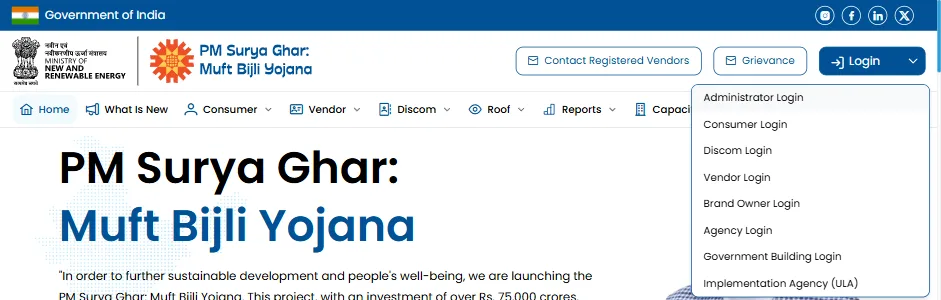
On pmsuryaghar.gov.in, click Login at the top right and choose Consumer Login. The same header has Contact Registered Vendors and Grievance, which you will need later.
Step 2: Register with your mobile number
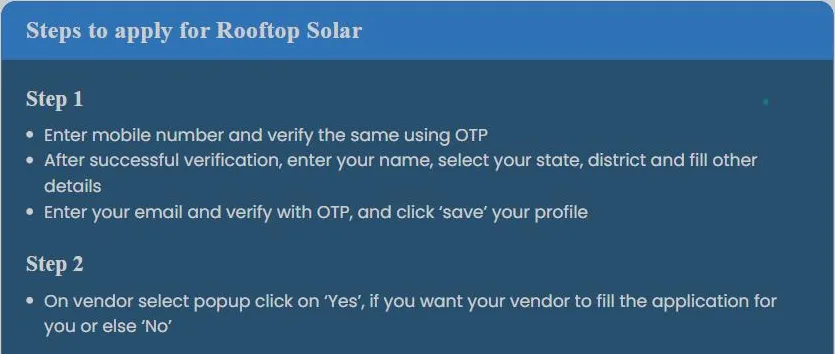
Enter your mobile number, type the captcha, tick that you have read the guidelines and verify with the OTP. Then add your name, state and district, verify your email with a second OTP and save your profile. The portal shows these same steps beside the login box.
Step 3: Decide who fills the form
A pop-up asks whether your vendor should fill in the application for you. Choose Yes only if you have already picked a registered vendor you trust. Choosing No keeps the application in your hands, which makes later stages easier to follow.
Step 4: Apply for rooftop solar
Click Apply for Solar Rooftop, select your state, district and DISCOM, enter your consumer number and click Fetch details. The portal pulls your name, address and sanctioned load from the DISCOM. Check them, enter the system size you want, and submit.
Step 5: Choose a vendor and add your bank details
Once the DISCOM approves feasibility, the portal asks you to select a vendor and submit the bank account the subsidy will be paid into. Only vendors registered for your state appear. Agree the price in writing before they start, with the panel model, cell type and inverter named; the price by size page shows what systems typically cost.
Step 6: Installation and inspection
After installation, the vendor sends the installation details to you on the portal. Check that the panel serial numbers and photos match what is on your roof, then pass them to the DISCOM. The DISCOM inspects the system, fits the net meter and sends its inspection report back to you.
Step 7: Redeem the subsidy
When the inspection report reaches you, redeem the subsidy on the portal. This sends your claim for payment. According to the government, the subsidy is being paid about 15 days after redemption on average.
How to check your application status
On the website
Log in through Consumer Login with your mobile number and OTP. Your dashboard lists the application with its current stage.
| What the dashboard shows | Who acts | What it means |
|---|---|---|
| Application submitted | You | Your request has reached the DISCOM. |
| Feasibility approved | DISCOM | Your connection can take the system. Up to 10 kW this is deemed approved. |
| Vendor selected, bank details added | You | You have picked the installer and given the account the subsidy will go to. |
| Installation details submitted | Vendor, then you | The vendor uploads photos and panel details; you check and pass them to the DISCOM. |
| Inspection done, net meter fitted | DISCOM | The DISCOM has checked the system and sent you its inspection report. |
| Subsidy redeemed | You | You have asked for the money. This is the step people forget. |
| Subsidy released | Government | Paid to your bank account, about 15 days after redemption on average. |
On the app
The official app is PM – SURYA GHAR, published by MeitY, Government of India, on Android and iPhone. It shows the same stages as the website. Avoid look-alike apps with different publishers.
By phone
Call the national helpline 15555 with your application number ready.
Why applications get stuck, and the fix
| Problem | What to do |
|---|---|
| “Consumer number not found” | You picked the wrong DISCOM or district. Copy the consumer number exactly as it appears on your bill and check the DISCOM name printed on it. |
| Stuck at feasibility for weeks | Systems up to 10 kW should be deemed approved. Raise a grievance on the portal and quote your application number. |
| Name on bill, bank account and application don’t match | Fix it before installation. Use the bank account of the person named on the electricity bill, with the same spelling. |
| Vendor has not uploaded installation details | Chase the vendor in writing. If they have stopped responding, raise a grievance; the portal can deactivate vendors who ignore complaints. |
| Inspection done but no subsidy | Check whether you redeemed the subsidy. Payment only starts after you do. |
| Panels rejected | Subsidised systems need panels with Indian-made cells. Ask the vendor for the DCR certificate before the panels go up, not after. |
Raising a grievance
Click Grievance at the top of the portal, choose your application and describe the problem. You get a complaint number to track it, and grievances are meant to be resolved within 30 days. If nothing moves, take the complaint number to your DISCOM’s rooftop solar nodal officer.
The solar loan and the Give It Up option
If you want a loan, the portal links to the JanSamarth platform, where banks offer collateral-free loans for systems up to 3 kW at about 5.75% for loans up to ₹2 lakh. Work out the instalment with the solar EMI calculator.
The portal also offers a Give It Up option for people who want to install without the subsidy, for example to use panels with imported cells. Choose it only if you mean to give up the money; it cannot be claimed later.
Frequently asked questions
How do I apply for PM Surya Ghar online?
Go to pmsuryaghar.gov.in, choose Consumer Login, register with your mobile number and OTP, then click Apply for Solar Rooftop and enter your consumer number. After the DISCOM approves, select a vendor and add your bank details.
How do I check my PM Surya Ghar application status?
Log in through Consumer Login with your mobile number and OTP and open your dashboard, use the official PM – SURYA GHAR app, or call the helpline 15555.
When do I give my bank details?
On the current portal, right after the DISCOM approves feasibility, together with choosing your vendor.
What does “redeem subsidy” mean?
It is your request for payment after the DISCOM has inspected the system. The subsidy is not paid until you redeem it.
How long does the subsidy take after installation?
It depends on how quickly your DISCOM inspects the system. Once you redeem the subsidy, payment has been taking about 15 days on average.
Can my vendor apply for me?
Yes. When the portal asks whether your vendor should fill in the application, choose Yes. Keep the login in your own name so you can follow every stage.
What is the last date to apply for PM Surya Ghar?
The scheme is approved until 31 March 2027. An extension has been reported as under consideration but not announced, so apply early enough for installation, inspection and payment to finish before then.